






Usenet for Beginners
Step by Step with Hitnews & SABnzbd
Do you have a Hitnews account and want to get started with Usenet?
Then you've come to the right place. This guide takes you step by step through installing and configuring SABnzbd.
1. What do I need?
To get started, you basically need three things:
1. Usenet access
Your Hitnews account provides this.
2. A newsreader / download client
In this guide we use SABnzbd. It is free and easy to use.
3. An NZB file
An NZB file enthält die Informationen, die SABnzbd benötigt, um die gewünschten Artikel im Usenet zu finden und herunterzuladen.
Important: An NZB file enthält normalerweise nicht die eigentlichen Dateien. Sie ist eher mit einer Wegbeschreibung vergleichbar.
2. Hitnews server settings
To configure SABnzbd, you will need your personal Hitnews login details.
Recommendation: Whenever possible, use an encrypted SSL/TLS connection on port 563.
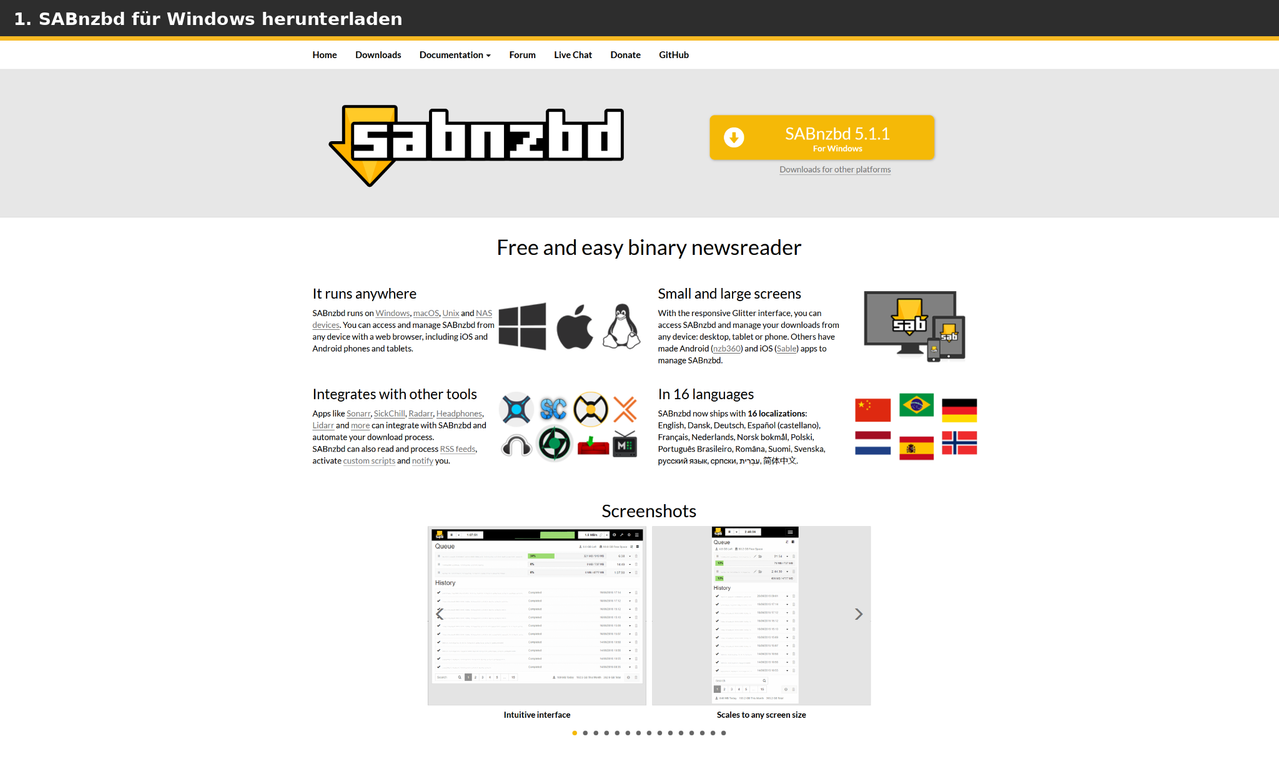
3. Download SABnzbd
You can download SABnzbd free of charge from the official website:
Download SABnzbd
For a standard Windows PC, choose the Windows version.
4. Install SABnzbd
Run the installer you downloaded.
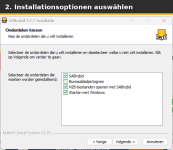
When choosing the components, you can normally keep the suggested settings.
If you like, you can also create a desktop shortcut.
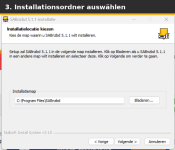
In the next step, choose the installation folder.
For most users, the suggested default folder is fine.
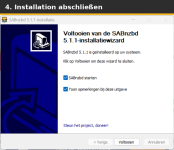
When installation is complete, leave Start SABnzbd enabled and click Finish.
5. Open SABnzbd
SABnzbd is controlled through a web interface, so your browser will normally open automatically after SABnzbd starts.
Don't worry: Although SABnzbd is displayed in your browser, the program is running on your own computer.
Depending on your language setting, the labels in SABnzbd may look slightly different from the screenshots.
6. Add Hitnews as a server
In SABnzbd, open:
Einstellungen / Config → Server
Then click:
Add Server / Server toevoegen
The server configuration fields will now appear.
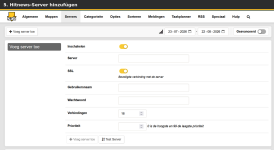
Trage folgende Daten ein:
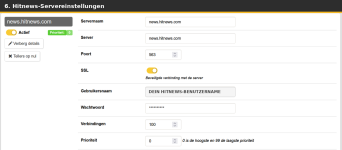
Hinweis zu den Connections:
Hitnews unterstützt bis zu 100 gleichzeitige Connections.
Mehr Connections bedeuten aber nicht automatisch mehr Geschwindigkeit. Beginne am besten mit etwa 20 bis 50. Wenn deine Internetverbindung damit bereits vollständig ausgelastet wird, brauchst du die Anzahl nicht weiter zu erhöhen.
7. Test the connection
After entering your details, click:
Test Server / Server testen
If everything is configured correctly, SABnzbd will report that the connection was successful.
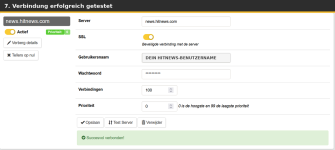
If you receive an error message, first check:
8. What is an NZB file?
An NZB file kannst du dir vereinfacht wie eine Wegbeschreibung vorstellen.
It tells SABnzbd which articles to download from Usenet. The actual data is stored on Usenet.
An NZB file ist deshalb normalerweise nur sehr klein.
9. An NZB file hinzufügen
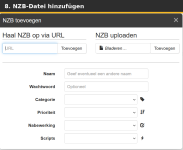
In the SABnzbd main window, click the button to add an NZB file.
You can:
For a file on your computer, click Browse, select the `.nzb` file and then click Add.
10. The download
After adding the NZB, SABnzbd will normally start downloading automatically.
In the main window you can see, among other things:

11. Repairing and unpacking
SABnzbd automatically handles many tasks after downloading.
Depending on the download, SABnzbd can:
Normally, you do not need to perform these steps yourself.
12. Configure download folders
You can find the folder settings under:
Einstellungen / Config → Ordner / Folders
Here you can configure, among other things:
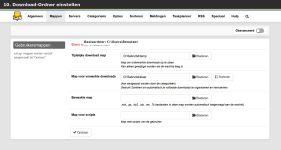
For beginners, the default settings are normally sufficient. If you prefer to store downloads on another drive, you can change the folders here.
13. Common problems
Authentication failed / Login failed
Kontrolliere deinen Hitnews-Usernamen und dein Password.
Also make sure the server is entered exactly as follows:
No connection to the server
Check:
If you cannot connect, a firewall or security program may also be blocking the connection.
The download ist langsam
Beginne mit etwa 20 bis 50 Connections.
If your internet connection is not yet fully utilized, you can gradually increase the number.
Hitnews unterstützt maximal 100 Connections.
The download ist unvollständig
An incomplete download does not automatically mean there is a problem with your Hitnews account.
Individual articles may no longer be available or may be damaged. If suitable repair data is available, SABnzbd will automatically try to repair the download.
14. Other newsreaders
Hitnews works with more than just SABnzbd.
You can also use other Usenet programs, for example:
Die wichtigsten Hitnews server settings bleiben dabei gleich:
15. Schnellübersicht
HITNEWS – SERVERKONFIGURATION
Server: news.hitnews.com
SSL/TLS: Enabled
Port: 563
Alternative port: 443
Connections: 20–50 recommended
Maximum: 100
Username: Dein Hitnews-Username
Password: Dein Hitnews-Password
16. Help and support
Is something not working, or do you have questions about your Hitnews account?
Visit our support forum:
Hitnews Support Forum
Describe your problem as clearly as possible and mention which newsreader you are using.
Security notice:
Veröffentliche niemals deinen Hitnews-Usernamen oder dein Password im Forum.
Useful links
Hitnews
https://hitnews.com/de/
Hitnews Support Forum
https://forum.hitnews.com/
SABnzbd Download
https://sabnzbd.org/downloads
Done!
If you have completed all the steps, SABnzbd is now connected to Hitnews and ready to use.
Enjoy Hitnews!
Step by Step with Hitnews & SABnzbd
Do you have a Hitnews account and want to get started with Usenet?
Then you've come to the right place. This guide takes you step by step through installing and configuring SABnzbd.
1. What do I need?
To get started, you basically need three things:
1. Usenet access
Your Hitnews account provides this.
2. A newsreader / download client
In this guide we use SABnzbd. It is free and easy to use.
3. An NZB file
An NZB file enthält die Informationen, die SABnzbd benötigt, um die gewünschten Artikel im Usenet zu finden und herunterzuladen.
Important: An NZB file enthält normalerweise nicht die eigentlichen Dateien. Sie ist eher mit einer Wegbeschreibung vergleichbar.
2. Hitnews server settings
To configure SABnzbd, you will need your personal Hitnews login details.
Code:
Server:          news.hitnews.com
SSL/TLS:         Enabled
Port:            563
Alternative port: 443
Username:    Dein Hitnews-Username
Password:        Dein Hitnews-Password
Connections:    20–50 recommended
Maximum:         100 Connections
Recommendation: Whenever possible, use an encrypted SSL/TLS connection on port 563.
3. Download SABnzbd
You can download SABnzbd free of charge from the official website:
Download SABnzbd
For a standard Windows PC, choose the Windows version.
4. Install SABnzbd
Run the installer you downloaded.
When choosing the components, you can normally keep the suggested settings.
If you like, you can also create a desktop shortcut.
In the next step, choose the installation folder.
For most users, the suggested default folder is fine.
When installation is complete, leave Start SABnzbd enabled and click Finish.
5. Open SABnzbd
SABnzbd is controlled through a web interface, so your browser will normally open automatically after SABnzbd starts.
Don't worry: Although SABnzbd is displayed in your browser, the program is running on your own computer.
Depending on your language setting, the labels in SABnzbd may look slightly different from the screenshots.
6. Add Hitnews as a server
In SABnzbd, open:
Einstellungen / Config → Server
Then click:
Add Server / Server toevoegen
The server configuration fields will now appear.
Trage folgende Daten ein:
Code:
Server:          news.hitnews.com
Port:            563
SSL:             Enabled
Username:    Dein Hitnews-Username
Password:        Dein Hitnews-Password
Connections:    20–50 recommended
Priority:       0
Hinweis zu den Connections:
Hitnews unterstützt bis zu 100 gleichzeitige Connections.
Mehr Connections bedeuten aber nicht automatisch mehr Geschwindigkeit. Beginne am besten mit etwa 20 bis 50. Wenn deine Internetverbindung damit bereits vollständig ausgelastet wird, brauchst du die Anzahl nicht weiter zu erhöhen.
7. Test the connection
After entering your details, click:
Test Server / Server testen
If everything is configured correctly, SABnzbd will report that the connection was successful.
If you receive an error message, first check:
- Server: news.hitnews.com
- Port: 563
- SSL/TLS: enabled
- Username
- Password
8. What is an NZB file?
An NZB file kannst du dir vereinfacht wie eine Wegbeschreibung vorstellen.
It tells SABnzbd which articles to download from Usenet. The actual data is stored on Usenet.
An NZB file ist deshalb normalerweise nur sehr klein.
9. An NZB file hinzufügen
In the SABnzbd main window, click the button to add an NZB file.
You can:
- upload an NZB file from your computer;
- or add an NZB using a URL.
For a file on your computer, click Browse, select the `.nzb` file and then click Add.
10. The download
After adding the NZB, SABnzbd will normally start downloading automatically.
In the main window you can see, among other things:
- the download name;
- the total size;
- the progress;
- the current speed;
- the remaining time.
11. Repairing and unpacking
SABnzbd automatically handles many tasks after downloading.
Depending on the download, SABnzbd can:
- verify the downloaded data;
- detect missing or damaged parts;
- repair the download when repair data is available;
- automatically unpack RAR archives;
- place the completed files in your download folder.
Normally, you do not need to perform these steps yourself.
12. Configure download folders
You can find the folder settings under:
Einstellungen / Config → Ordner / Folders
Here you can configure, among other things:
- where temporary downloads are stored;
- where completed downloads are stored;
- which folder should automatically be watched for new NZB files.
For beginners, the default settings are normally sufficient. If you prefer to store downloads on another drive, you can change the folders here.
13. Common problems
Authentication failed / Login failed
Kontrolliere deinen Hitnews-Usernamen und dein Password.
Also make sure the server is entered exactly as follows:
Code:
news.hitnews.comNo connection to the server
Check:
Code:
Server: news.hitnews.com
Port: 563
SSL/TLS: Enabled
If you cannot connect, a firewall or security program may also be blocking the connection.
The download ist langsam
Beginne mit etwa 20 bis 50 Connections.
If your internet connection is not yet fully utilized, you can gradually increase the number.
Hitnews unterstützt maximal 100 Connections.
The download ist unvollständig
An incomplete download does not automatically mean there is a problem with your Hitnews account.
Individual articles may no longer be available or may be damaged. If suitable repair data is available, SABnzbd will automatically try to repair the download.
14. Other newsreaders
Hitnews works with more than just SABnzbd.
You can also use other Usenet programs, for example:
- NZBGet
- Newsbin
- GrabIt
- Alt.Binz
- Spotnet
Die wichtigsten Hitnews server settings bleiben dabei gleich:
Code:
Server: news.hitnews.com
SSL/TLS-Port: 563
Alternativer SSL/TLS-Port: 443
Maximal: 100 Connections
15. Schnellübersicht
HITNEWS – SERVERKONFIGURATION
Server: news.hitnews.com
SSL/TLS: Enabled
Port: 563
Alternative port: 443
Connections: 20–50 recommended
Maximum: 100
Username: Dein Hitnews-Username
Password: Dein Hitnews-Password
16. Help and support
Is something not working, or do you have questions about your Hitnews account?
Visit our support forum:
Hitnews Support Forum
Describe your problem as clearly as possible and mention which newsreader you are using.
Security notice:
Veröffentliche niemals deinen Hitnews-Usernamen oder dein Password im Forum.
Useful links
Hitnews
https://hitnews.com/de/
Hitnews Support Forum
https://forum.hitnews.com/
SABnzbd Download
https://sabnzbd.org/downloads
Done!
If you have completed all the steps, SABnzbd is now connected to Hitnews and ready to use.
Enjoy Hitnews!