
In this four-step guide to getting started with Usenet, you will learn more than the basics of how to use Usenet, from finding a suitable and cost-effective Usenet provider, getting a Usenet client, using Usenet search indexers, and last but not least, downloading content.

When Usenet was created, it was primarily used by colleges, universities, and tech research labs until the 1990s. In 1993, AOL became the first major ISP to offer Usenet access to its users, leading to a significant increase in popularity. By the mid-90s, hosting Usenet servers was common among American ISPs, with each host synchronizing its content to create a uniform network.
But now, although some Internet Service Providers (ISPs) might still offer Usenet access, these services are no longer suitable for sharing files because of the limitations imposed on speed and binary groups. It is therefore recommended to use non-ISP providers for a better experience.
To access Usenet, you must sign up for an account with a Usenet provider. There are many providers to choose from, so you should research to find one that meets your needs. Some providers offer unlimited data transfer, while others have monthly limits.
Top Usenet providers like Newshosting and Easynews offer high-speed connections, long retention periods (over 5,000 days), and excellent customer support. Below is a short list of some of the most popular Usenet providers in the market.
Again, we recommend you research and find the most suitable Usenet provider for your needs. For demonstration purposes, we will start with a popular “privacy-focused” Usenet provider: Usenet.farm.
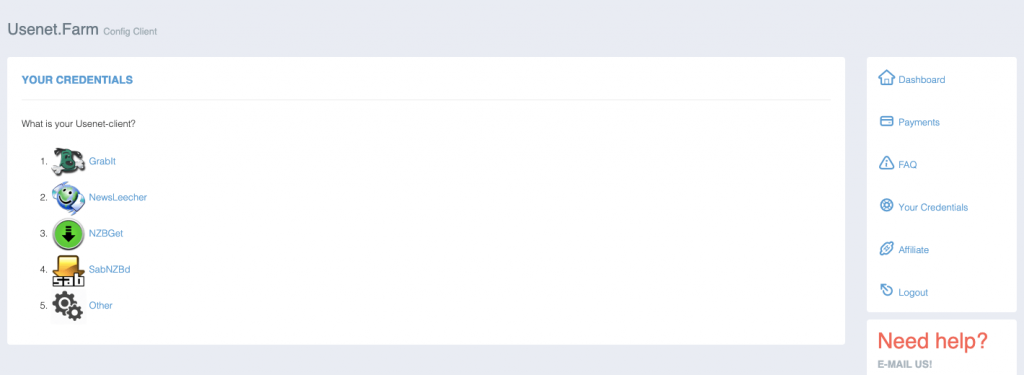 Photo by Usenet.farm
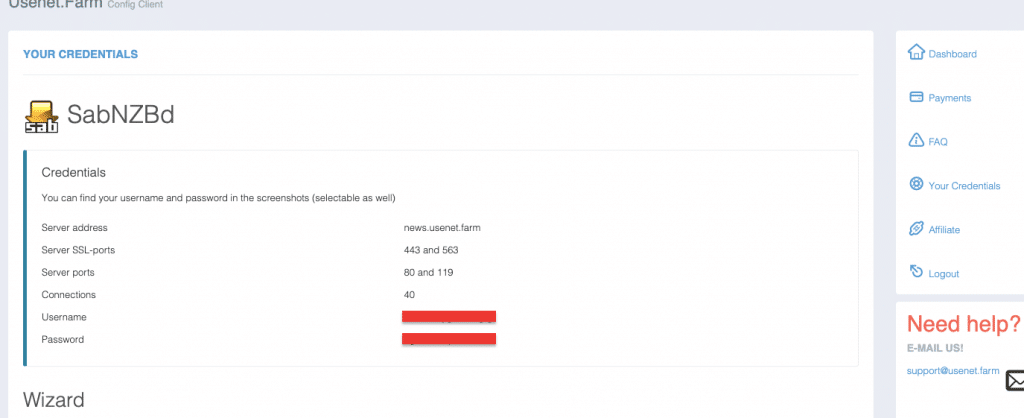 Image by Usenet.farm
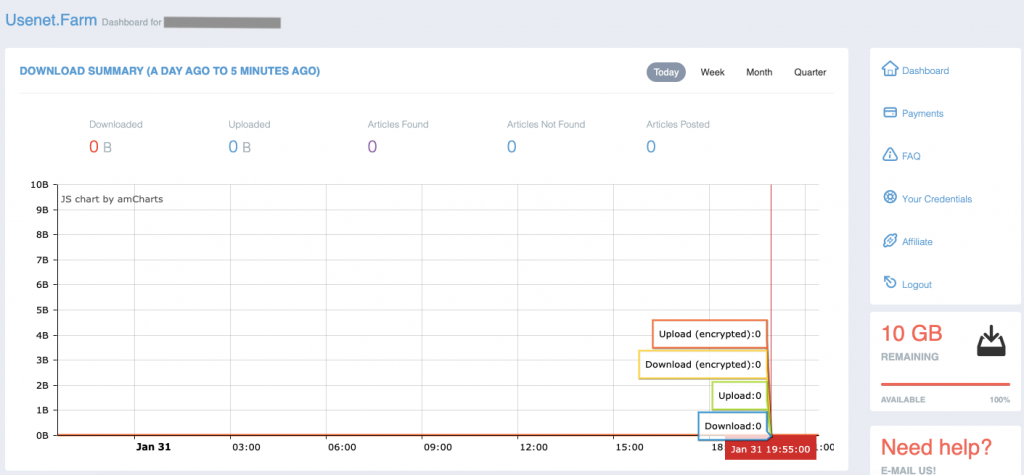 Photo by Usenet.farm
Over the years, Usenet enthusiasts have developed and improved newsreaders (or Usenet clients) to make accessing Usenet easier. A Usenet client (or binary newsreader) allows you to access, download content, and participate in the Usenet network. It connects to a Usenet server and provides access to a wealth of discussion groups and content, including text articles and binary files.
The most advanced among these are the NZB clients, which simplify the process of unlocking the vast world of Usenet content. With an NZB client, users can quickly and easily find and download the content they are looking for, making Usenet much more accessible to the average person.
 Usenet That Runs 24/7
Never miss a file. With always-on access, Usenet becomes seamless—even when your device is off.
Keep It Running →
There are many options to choose from, including free and paid clients. The best NZB and Usenet clients make it simple and easy to access newsgroups and download newsgroup content. They offer a user-friendly interface, fast download speeds, and a wide range of features to help users get the most out of Usenet. Some popular options include:
 Image by SABnzbd
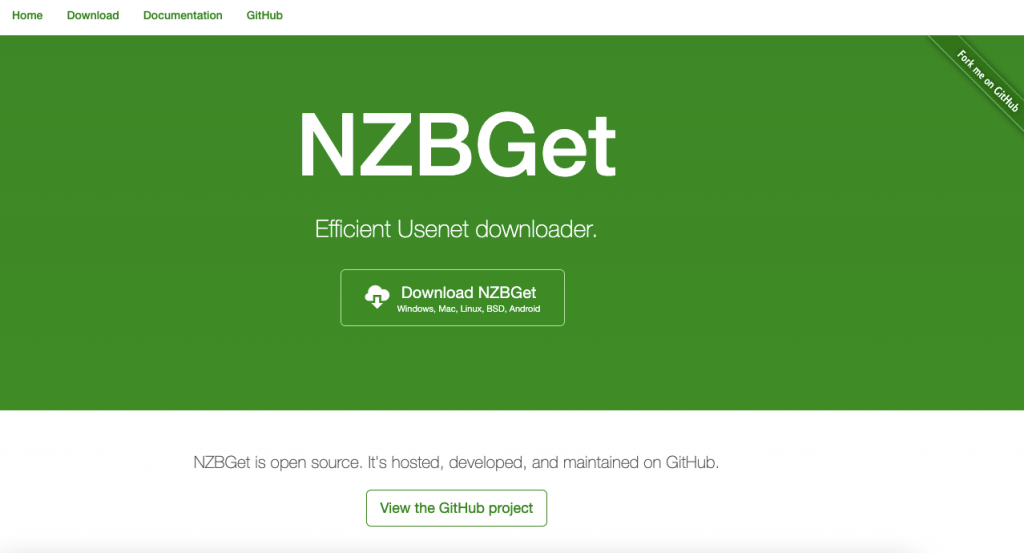 Photo by nzbget
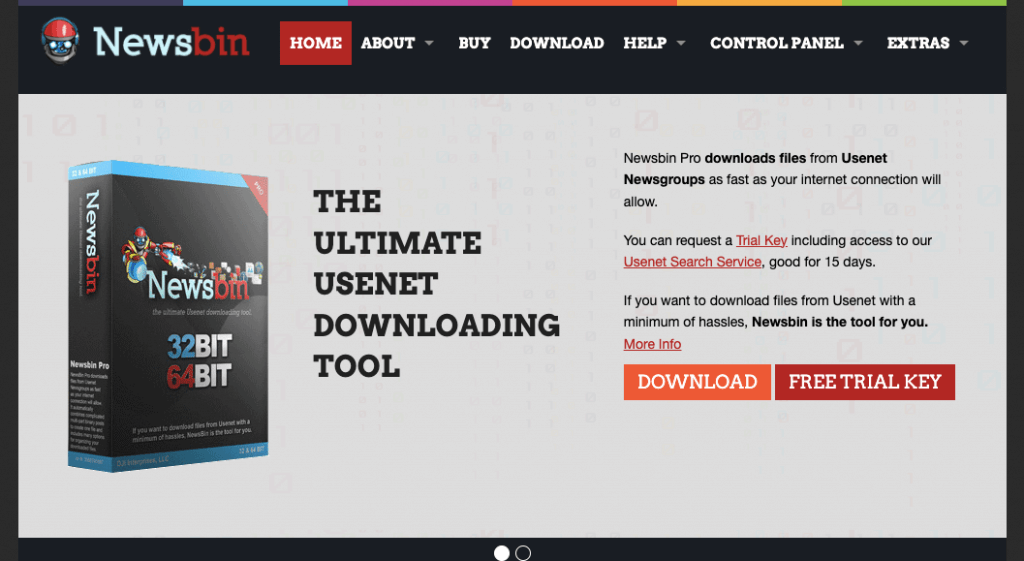 Image by Newsbin
For demonstration purposes, we will download, install, and configure the Usenet client, SABnzbd. Once you download and start the installation process, you will notice that SABnzdb requires certain Server information, including Host, Username, Password, and SSL.
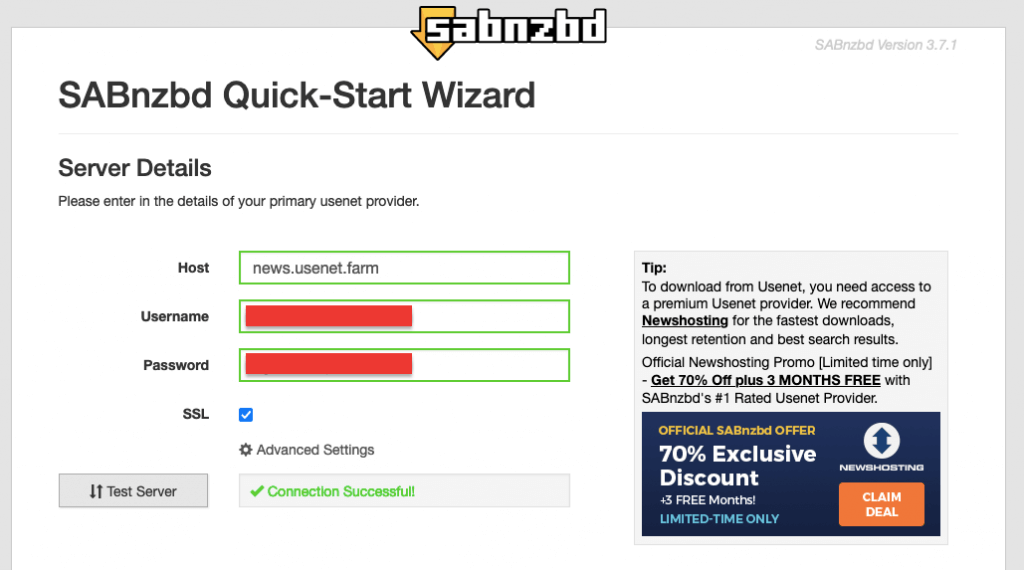 Photo by SABnzbd
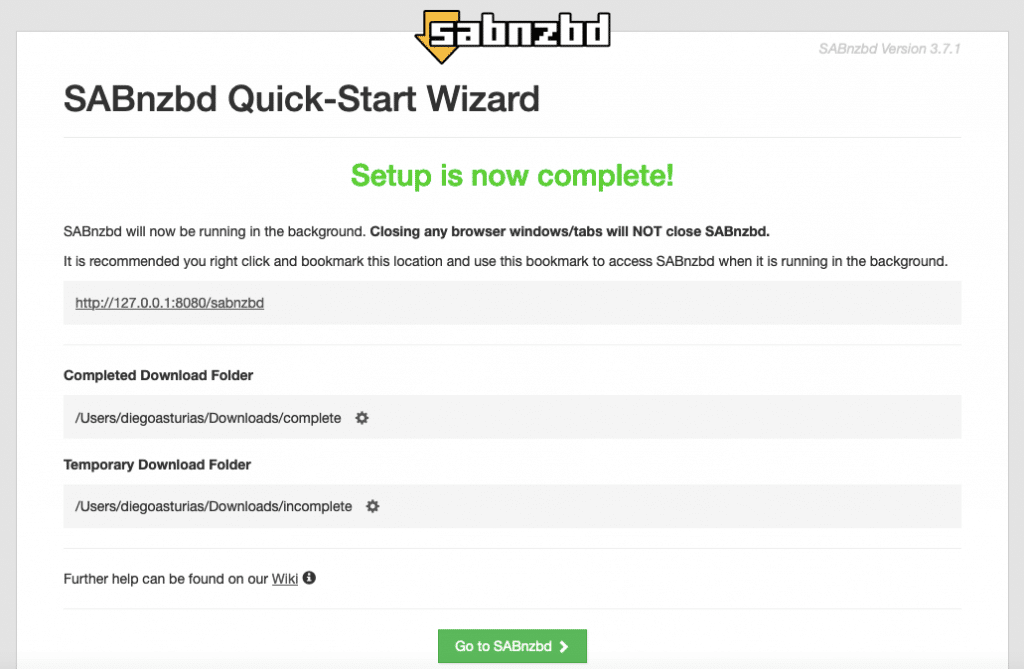 Image by SABnzbd
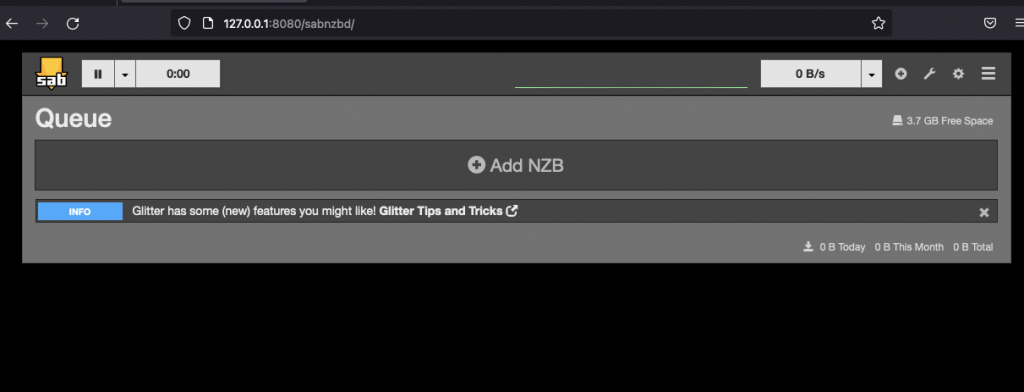 Photo by SABnzbd
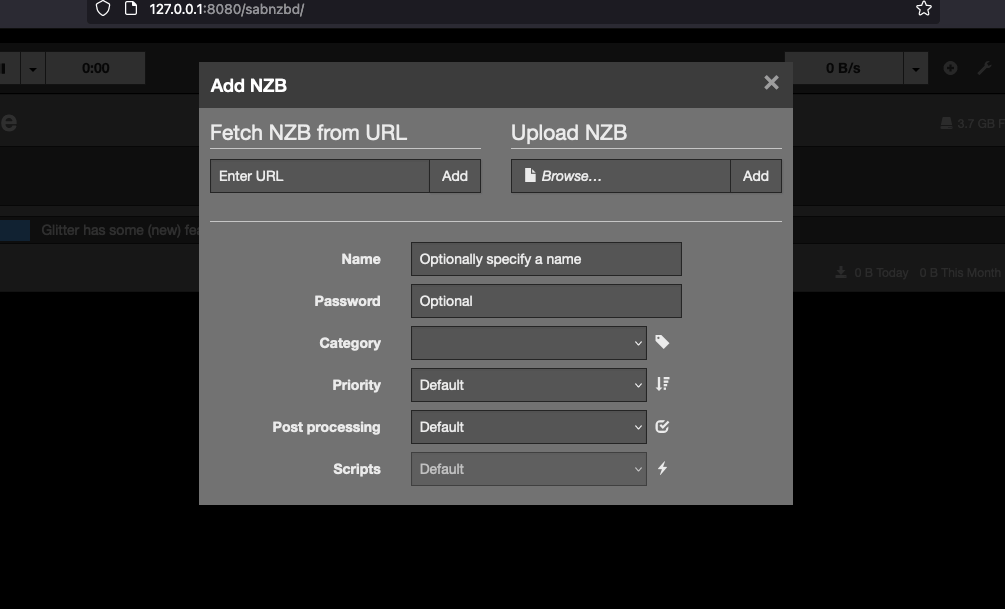 Image by SABnzbd
Usenet indexers (also referred to as Usenet search engines or NZB indexing websites) are websites that provide a searchable database of content posted on Usenet. These Usenet indexers can easily find and download binary files such as images, videos, and more from Usenet. Without a dedicated indexing service, finding the content you want would be challenging.
Here’s a step-by-step guide to getting started with Usenet indexers, the dedicated Usenet search tools that make it easier to find specific discussion threads or files.
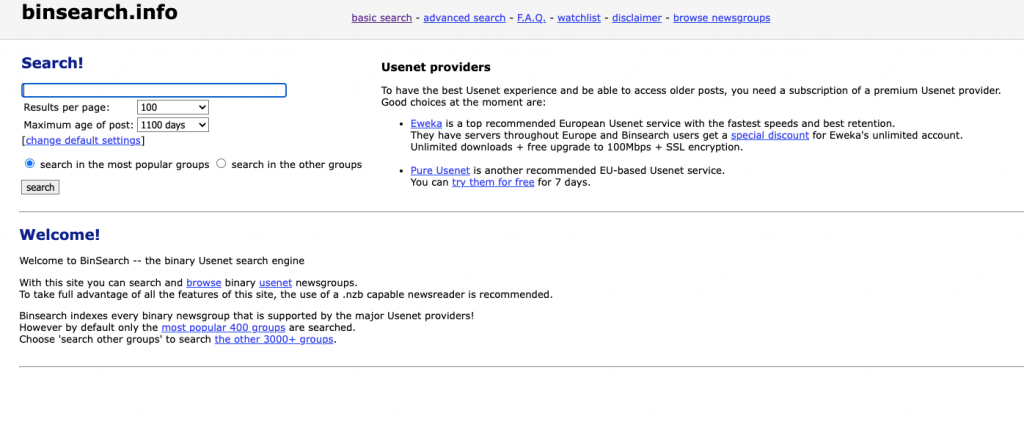 Photo by Binsearch.info
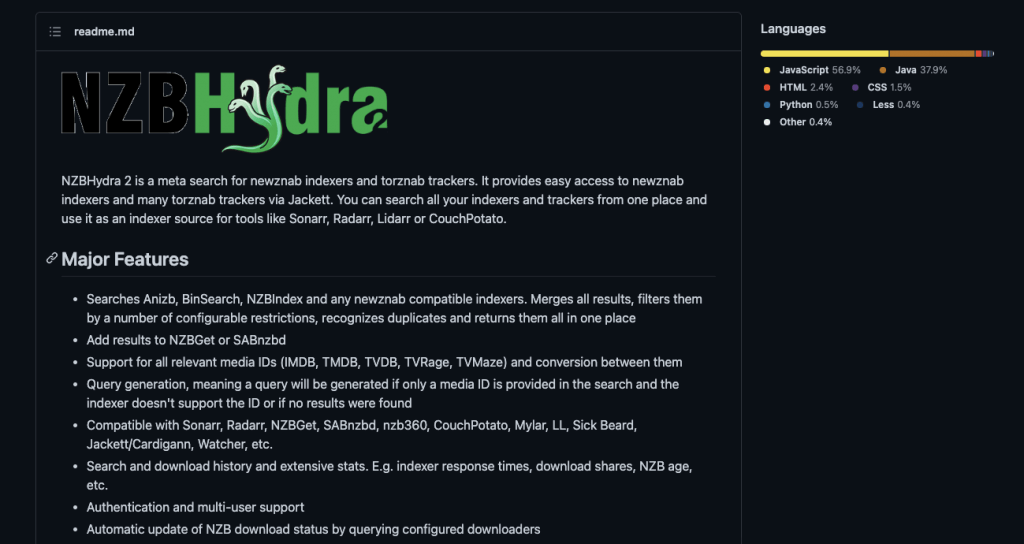 Photo by NZBHydra2
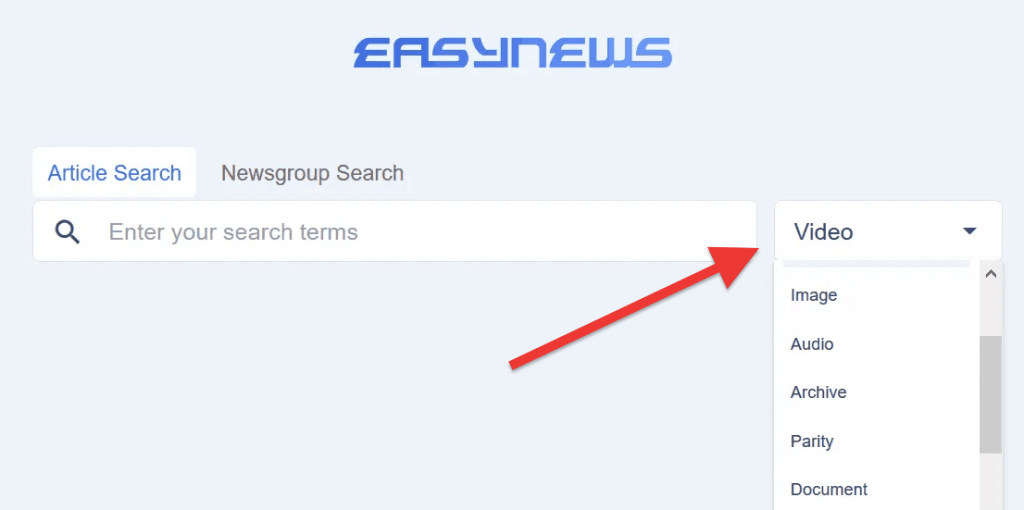 Image by Easynews
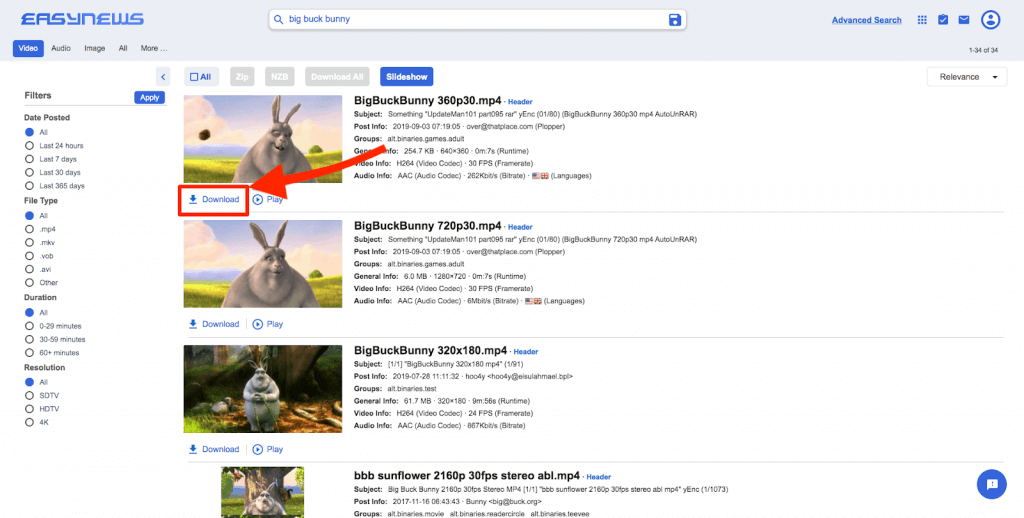 Photo by Easynews
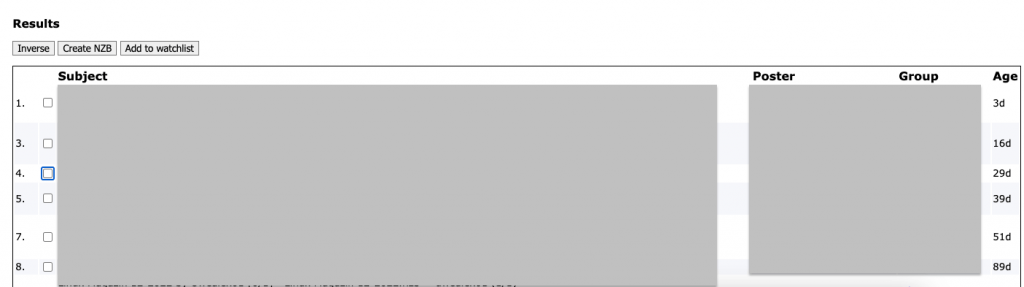 Image by Easynews
Advanced (membership-only) Usenet indexers come with advanced search capabilities. For instance, Easynews, a popular Usenet NZB indexer with advanced search capabilities, allows you to fine-tune your search queries and get the precise results you are looking for. How to use it?
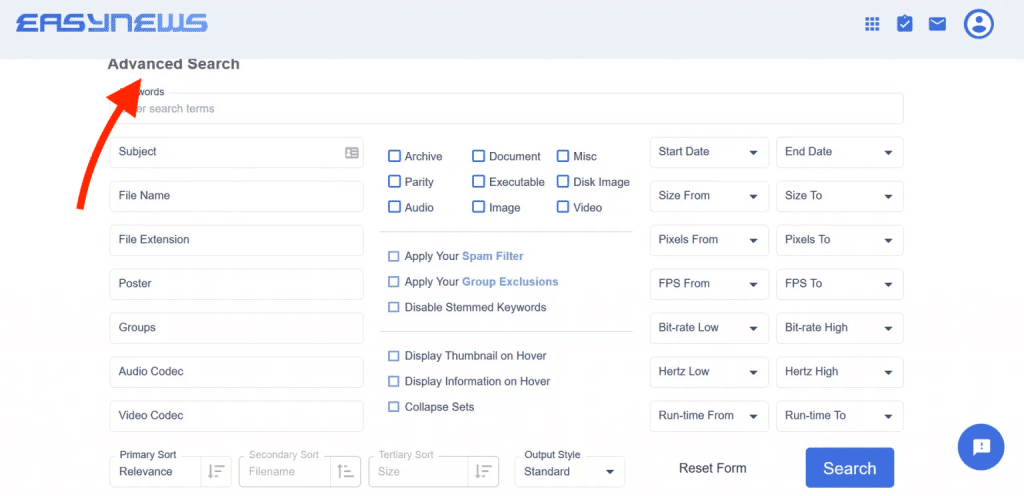 Photo by Easynews
Once you have found the content you want to download on certain Usenet Indexers (you have the NZB file), you can use your Usenet client to download NZB files. The download process will depend on the client you are using, but generally, you will need to enter the NZB file’s location, and the client will handle the download for you.
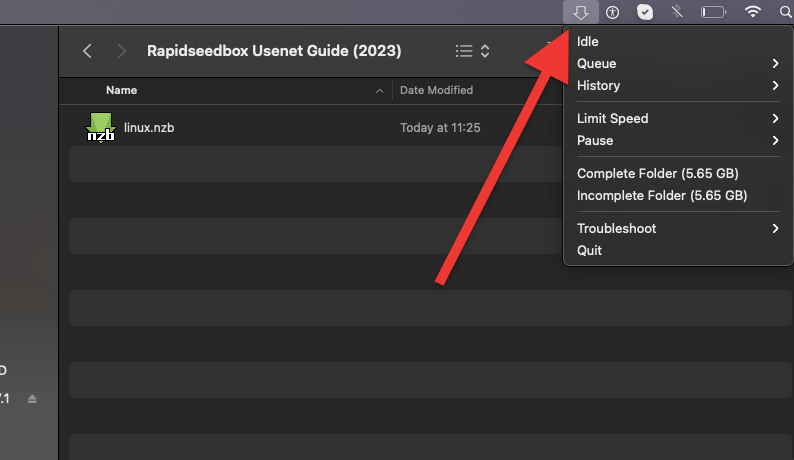
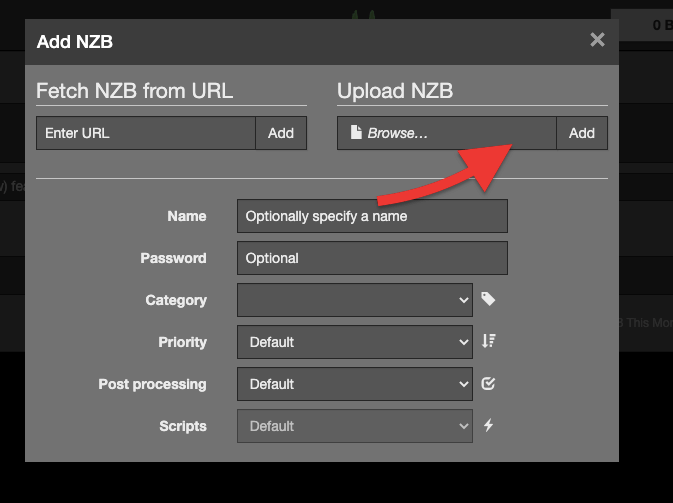 Image by SABnzbd
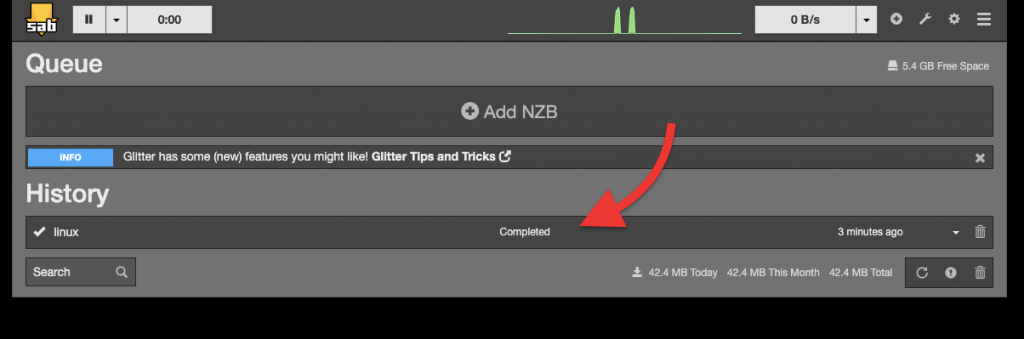 Photo by SABnzbd
a. Find a Usenet provider.
When Usenet was created, it was primarily used by colleges, universities, and tech research labs until the 1990s. In 1993, AOL became the first major ISP to offer Usenet access to its users, leading to a significant increase in popularity. By the mid-90s, hosting Usenet servers was common among American ISPs, with each host synchronizing its content to create a uniform network.
But now, although some Internet Service Providers (ISPs) might still offer Usenet access, these services are no longer suitable for sharing files because of the limitations imposed on speed and binary groups. It is therefore recommended to use non-ISP providers for a better experience.
i. When choosing a Usenet provider, consider the following terms:
- Download speeds. A high download speed allows for faster file transfers, making the Usenet experience more efficient and enjoyable.
- Download limits. Some Usenet providers impose download limits on their plans, which may affect how much data you can download. Knowing these restrictions is crucial in determining the right provider for your needs.
- The number of server connections is the number of simultaneous connections you can have with the provider’s servers. A high number of connections means more efficient and faster downloads. Most providers offer 10+ concurrent connections, which is adequate for most users.
- Binary retention duration refers to the length of time the Usenet server retains binary files. A higher retention duration means more files are available for download. Higher retention is preferred, and top providers usually offer over 1,000 days of retention. A minimum of 800+ days should be acceptable.
- Quotas/Monthly Caps: Providers offer varying levels of service, ranging from 10 GB per month to unlimited access. Most providers offer a free trial period, usually 30 days, which helps you determine usage and pick the appropriate tier. An unlimited plan is ideal for those with large file sizes.
- Security Features: SSL encryption is the most crucial security feature to look for in a Usenet provider, ensuring a secure and private connection. Some providers also offer extra security features like VPN services and secure file storage, which are nice but not essential.
- Available server regions: The location of the Usenet servers affects download speeds. You can expect faster download speeds if a server is located in your region.
- Pricing and subscriptions: The cost of Usenet services varies among providers, and it’s paramount to compare pricing and subscription options to find the best value for your needs.
ii. Some popular Usenet providers include:
To access Usenet, you must sign up for an account with a Usenet provider. There are many providers to choose from, so you should research to find one that meets your needs. Some providers offer unlimited data transfer, while others have monthly limits.
Top Usenet providers like Newshosting and Easynews offer high-speed connections, long retention periods (over 5,000 days), and excellent customer support. Below is a short list of some of the most popular Usenet providers in the market.
- Newshosting: Known as the best overall Usenet provider. Newshosting offers unlimited downloads and a free newsreader. Learn more about this provider in: Newshosting review.
- UsenetServer: Popular for its well-priced plans and unlimited Usenet access. It comes with a built-in Usenet search engine. UsenetServer
- Easynews. This is a great option if you are looking for a well-balanced package. You don’t need any software to start with this Usenet provider. Check our Easynews review for more on this fantastic Usenet provider.
- Eweka: A fantastic “independent” provider with some of the most potent Usenet servers. They offer some of the best retention and completion rates.
- Usenet.farm. This Netherlands-based provider offers fast servers for browsing Usenet through a desktop or web client. Launched in 2014, it provides three packages with quick sign-ups and a free trial.
- Giganews is a premium Usenet provider offering 100% completion and uncapped speed. Plus, it also includes VyprVPN. Renowned for its top-tier privacy, it retains over 6,600 days of text content.
- TweakNews is a trusted European Usenet provider offering unlimited plans with optional VPN on higher tiers. You get strong retention, high speeds, and competitive pricing in the EU.
iii. Starting with a Usenet Provider.
Again, we recommend you research and find the most suitable Usenet provider for your needs. For demonstration purposes, we will start with a popular “privacy-focused” Usenet provider: Usenet.farm.
- Usenet providers such as Usenet.farm use a web-based console.
- You’ll find your credentials, Usenet client information, and dashboard in this console.
- You’ll need credentials and host information to link your Usenet provider to your Usenet client. The credentials page should give you the server address, SSL ports, server ports, allowed connections, and username and password.
- A dashboard is helpful for analyzing downloads, uploads, and article information in a graph.
- Now that we have the Usenet provider set up and ready, we will need software (Usenet client) to interact easily between the provider and our machines.
b. Getting a Usenet client.
Over the years, Usenet enthusiasts have developed and improved newsreaders (or Usenet clients) to make accessing Usenet easier. A Usenet client (or binary newsreader) allows you to access, download content, and participate in the Usenet network. It connects to a Usenet server and provides access to a wealth of discussion groups and content, including text articles and binary files.
The most advanced among these are the NZB clients, which simplify the process of unlocking the vast world of Usenet content. With an NZB client, users can quickly and easily find and download the content they are looking for, making Usenet much more accessible to the average person.
Usenet That Runs 24/7Never miss a file. With always-on access, Usenet becomes seamless—even when your device is off.
Keep It Running →
i. The Best NZB and Usenet Clients.
There are many options to choose from, including free and paid clients. The best NZB and Usenet clients make it simple and easy to access newsgroups and download newsgroup content. They offer a user-friendly interface, fast download speeds, and a wide range of features to help users get the most out of Usenet. Some popular options include:
- SABnzbd: A free, open-source Usenet client that offers a web-based interface for easily downloading binary files. To know everything there is to know about this fantastic Usenet client, check one of our latest blog posts: The Complete Guide to SABnzbd
- NZBGet: A fast and efficient Usenet client that supports encrypted connections and can run on various devices, including routers and media centers. NZBGet is also free and open-source. To know everything there is to know about this fantastic Usenet downloader, check one of our latest blog posts: The Ultimate Guide to SABnzbd
- Newsbin: A powerful Usenet client that offers advanced features such as automatic file repair, fast multi-server downloading, and an intuitive interface. Newsbin is not free; however, they offer a 15-day free trial, including access to their Usenet Search Service.
ii. Starting with a Usenet client.
For demonstration purposes, we will download, install, and configure the Usenet client, SABnzbd. Once you download and start the installation process, you will notice that SABnzdb requires certain Server information, including Host, Username, Password, and SSL.
- You can find this information from your Usenet provider. We also mentioned this in the previous section, “Starting with a Usenet provider.”
- Once you have entered the correct information, click on the “Test Server” below to ensure you can connect to your Usenet provider.
- Click “Next.” In the next window, you’ll notice that SABnzbd gives you a few vital details. This includes your URL to access the application on the web browser, the completed downloads folder, and the incomplete downloads folder.
- To open the SABnzdb client, click on the “Go to SABnzdb” green button or enter http://127.0.0.1:8080/sabnzdb (or http://localhost:8080/sabnzdb) in your web browser.
- SABnzdb’s web-based console is relatively straightforward.
- The navigation menu below the top bar shows the queue, history, and NZB download window.
- To add a new download, click “Add NZB” in the top-right corner of the interface (or drag-n-drop). This option will open a window where you can enter the URL or file location of the NZB file you want to download.
- At this point, you’ll notice that you’ll need to add an NZB file. You can either fetch the NZB from an URL or upload the NZB file from your computer. You can optionally give this NZB a name, password, set category, priority, post-processing, and add scripts. You can leave most of these values by default or configure them with your preferences.
- To add an NZB file, you’ll need to search on Usenet indexers.
- To know more about this, check our: The Complete Guide to SABnzbd.
c. Finding Content via Usenet Search “Indexers.”
Usenet indexers (also referred to as Usenet search engines or NZB indexing websites) are websites that provide a searchable database of content posted on Usenet. These Usenet indexers can easily find and download binary files such as images, videos, and more from Usenet. Without a dedicated indexing service, finding the content you want would be challenging.
Here’s a step-by-step guide to getting started with Usenet indexers, the dedicated Usenet search tools that make it easier to find specific discussion threads or files.
- There are two types of Usenet indexers, free “public” and member-only “public.” Some NZB indexing websites are free, while others require a nominal annual fee to access more advanced Usenet search options. You can find more information about these sites online.
- You can also combine Usenet indexers. If you want a more comprehensive Usenet search, you can combine Usenet indexes. Powerful meta-searchers use programs like NZBHydra2 (open-source meta-search for newznab indexers and torznab trackers via Jackett) or NZBmegasearch (newznab meta-search engine and SB, CP unique NZB provider).
- These types of software can make your Usenet search more comprehensive, but it can be technically challenging for most people. You can find more information about these programs online.
- Use the Usenet search engine to find what you are looking for. Usenet search engines such as “Easynews” sort searches with “Articles search” and “Newsgroup searches,” each subdivided into specific categories, such as videos, images, audio, etc.
i. Reading the Usenet search engine results
- The following terms are commonly used in the search results of the Easynews NZB indexer.
- All: A button that allows you to select all items in the search results.
- Zip: A button that will enable you to download all selected items as a zip archive.
- NZB: A button that downloads all selected items as an NZB file.
- Download All: This button allows you to download all selected items in their original format.
- Slideshow: A button that displays the items in a slideshow format.
- Download: A button that allows you to download the selected item in its original format.
- Play: A button that will enable you to play the selected item directly in your browser.
- But the search results vary from Usenet indexer to Usenet indexer.
- You’ll notice from the screenshot below that the results from binsearch.info show a few different results, including “Inverse,” “Create NZB,” and “Add to Watchlist.” What does it all mean?
- Inverse: This option inverses your selection.
- Create NZB: This option means you’ll be able to create an NZB file (and download it) from your selection. An NZB file (.nzb) is an XML-based file format that enables you to retrieve posts from Usenet servers.
- Add to Watchlist: This feature allows you to add a particular search result to a list of items you are interested in keeping track of, typically for later downloading NZB files. The watchlist is a way to keep track of the content you want to download later.
- Once you find the NZB file that you are looking for with the help from the search results filters, you can click on the “Create NZB” option to download your file into your machine. This NZB file will need to be loaded into your NZB Usenet client.
ii. Advanced search Usenet indexers.
Advanced (membership-only) Usenet indexers come with advanced search capabilities. For instance, Easynews, a popular Usenet NZB indexer with advanced search capabilities, allows you to fine-tune your search queries and get the precise results you are looking for. How to use it?
- You can select the “Advanced Search” option in the top right of every page to use the advanced search.
- In this view, you can enter specific keywords and filter your search results based on criteria such as subject, filename, file extension, poster, groups, audio codec, video codec, file type, file size, posted date, and more.
- Easynews offers multiple view and rule options for you to choose from, such as applying your spam filter, disabling stemmed keywords, removing duplicates, and displaying hover thumbnails and information.
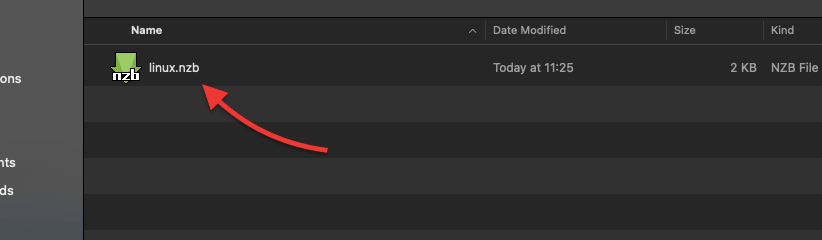
- So, once you find what you are looking for, go ahead and download the NZB file into your computer.
d. Downloading Content with Usenet.
Once you have found the content you want to download on certain Usenet Indexers (you have the NZB file), you can use your Usenet client to download NZB files. The download process will depend on the client you are using, but generally, you will need to enter the NZB file’s location, and the client will handle the download for you.
- Let’s add the NZB file (we downloaded it in the previous section) to our SABnzbd client.
- If you double-click the NZB file, the Usenet client (SABnzbd) will start the download process.
- Refer to the picture below. For macOS, the quick access menu will be added to the top bar, so you can easily keep track of and control all your downloads.
- You can also use the “Add NZB” feature commonly found in Usenet clients (including SABnzbd).
- Go ahead and click on “Upload NZB” > Browse (find the NZB file on your computer) > Add.
- Adding the NZB file. When you add an NZB file to the Queue section of the SABnzbd interface, you can monitor the download’s progress and see any status or error messages related to the download.
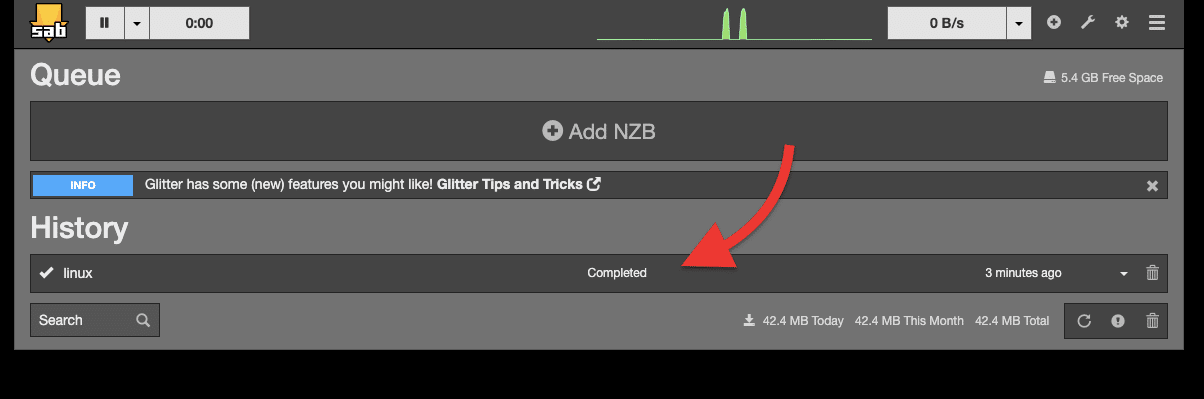 Photo by SABnzbd
- In the Config section of the interface, you can change various settings and preferences, such as server settings, download folders, and post-processing options.
- Once the download is complete, you can access the completed files in the History section of the interface. From here, you can also see any files that have failed to download or have been deleted.